Reads pages the way agents need
snapshot returns the page as roles, names and short refs (e12), not a wall of HTML. Act on a ref, a CSS selector, or the text a person would read — a real link or button wins over a heading.
 Browser
The Mac browser your AI agents can drive — in your real, signed-in profiles, without ever taking your mouse or keyboard. And a fast native browser for you, with real profiles and rules for where each link opens.
The tour, in 70 seconds. Music: Elektronomia – Sky High [NCS Release].
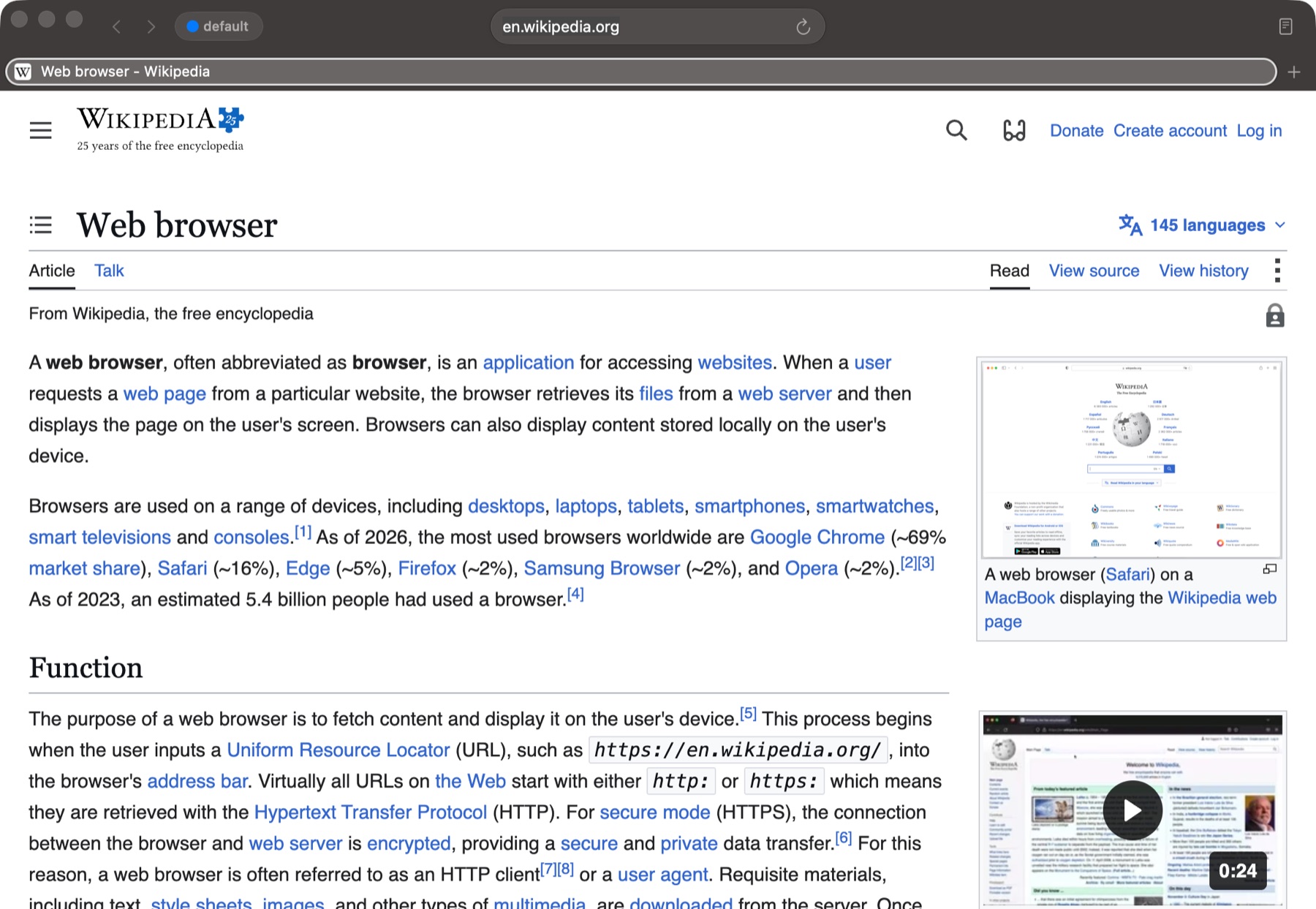
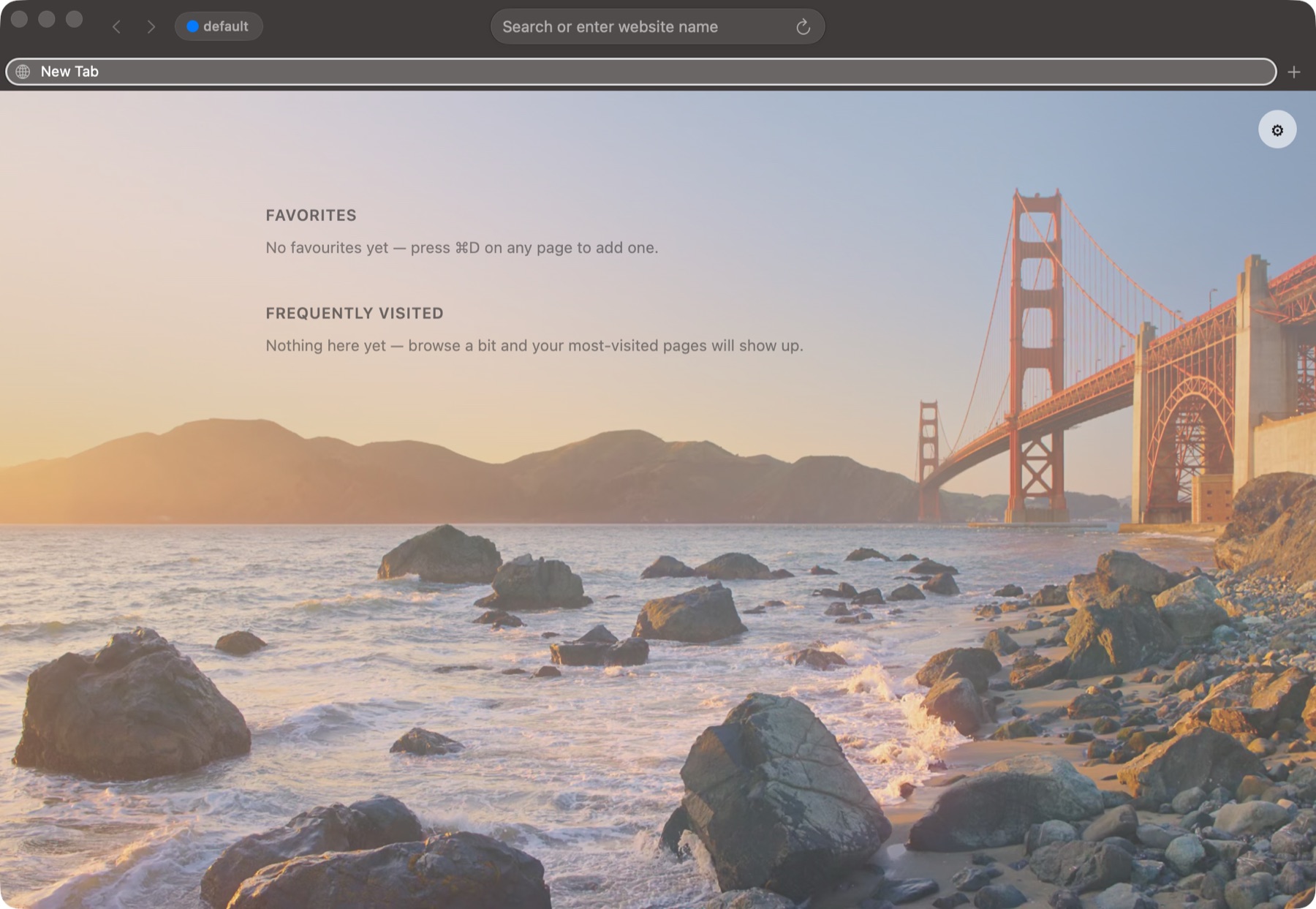
Above: an ordinary page. Right: the start page, with a background picture of your own.
Your agent gets its own window. You keep your Mac.
Built in, not bolted on. Claude Code, Codex, or any agent that can run a shell command drives Browser through browser page, the CLI inside the app. No Playwright install, no Chrome for Testing download, no debugging port left open.
Already signed in. An agent opens its window in the profile you name, with that profile's cookies and sessions — so it can check your dashboard, file the ticket or test the staging site you are logged in to. Or give it --private for an empty cookie jar.
Out of your way. Clicks and keystrokes go straight into the page, never through macOS. The pointer does not move, the app never comes to the front, and the agent's window never takes your typing. Run it --headless and it is off every screen.
Tell your agent to run browser page help. That is the whole setup.
$ browser page open https://github.com/acme/app/pull/42 \
    --profile Work --headless --wait-idle
Opened p1 in profile 'Work': https://github.com/acme/app/pull/42

$ browser page snapshot p1
Fix flaky login test · Pull Request #42 · acme/app
https://github.com/acme/app/pull/42

Elements:
  e12 link "Files changed"
  e31 textbox "Add a comment"
  e32 button "Comment"
  …

$ browser page type p1 "LGTM, merging" --ref e31
$ browser page click p1 --text Comment --wait-idle
$ browser page screenshot p1 --out review.png
$ browser page close p1
snapshot returns the page as roles, names and short refs (e12), not a wall of HTML. Act on a ref, a CSS selector, or the text a person would read — a real link or button wins over a heading.
--wait-idle returns once no request is in flight and the DOM has been still for 500 ms. Or wait for a selector, some text, a URL or a script to be true.
Click, hover, type, press keys and chords, pick from a select, upload files, answer dialogs, scroll. Pages see trusted events with their default actions, typed on your own keyboard layout.
Screenshots, full-page too. record captures a screencast with a drawn cursor where each click landed, ready for ffmpeg — proof for a PR, or a bug report that replays itself.
eval takes an expression or a block of statements, awaits a returned promise, and hands back JSON. Every command speaks --json.
Drive the engine your users have. Engine rules pick it per site, and an agent's page keeps that engine for its whole life, so nothing is closed out from under a command.
Agent control is a switch in Settings → Privacy → Agents. Nothing on the command line can flip it.
An agent reaches the windows it opened and nothing else — never your tabs. Its windows never take a link from another app and are never saved in your session.
The password manager never fills an agent's page, typing into a password field is refused, and a snapshot never carries a password's value. No command prints a saved password, ever.
The CLI talks to the app over a socket only your user account can open. Nothing goes through a server, because there isn't one.
Each profile gets its own cookies, history, bookmarks, passwords and cache — separate browser storage, not just a different colour. Switch, or run several windows side by side.
Make it your default browser, then route by domain, URL pattern, or the app the link came from. Work links land in the work profile without you thinking about it.
Saved logins live in the macOS Keychain, scoped per profile. Cards and addresses fill in too, and you can import an export from another browser.
Groups, pinning, drag to reorder, per-tab mute with an audio indicator, a tab overview, and session restore when you reopen.
Reader mode, find in page, page zoom that sticks per site, print and export to PDF, and Visual Look Up on images.
Favourites and frequently visited, per profile, over your own background picture or a colour.
Pick the rendering engine in Settings. WebKit, the engine Safari uses, brings Touch ID passkeys and Chrome extensions. Your windows and tabs reopen after the switch.
Import profiles, favourites, bookmarks, history and passwords from Safari or any Chromium browser. Safari history can keep syncing in, with the pages from your iPhone.
Links from other apps can open in a small window; ⌘O moves it into your browser without a reload. ⌥⇧-click any link to peek at it first.
Two engines, one shell. Pages render with Chromium, via CEF — the engine Chrome uses — or with WebKit, the engine Safari uses. Choose in Settings → General. Profiles, rules and the whole interface stay the same; only the rendering changes.
The shell is native. Tab strip, omnibox, menus, settings and panels are Swift and AppKit, talking to the engine through a thin Objective-C++ bridge. The chrome is Mac chrome, not a web page pretending to be one.
Signed, notarized, never sandboxed. Distributed with a Developer ID signature and an Apple notarization ticket. App Sandbox is deliberately off: a sandboxed app cannot register as the system default browser, which is the entire point of the routing rules.
It is an early version. A personal project, built in the open about its rough edges rather than pretending it has none.
Nothing is collected. There is no analytics, no telemetry, no crash reporting to a server, and no account. The app does not phone home, and there is no server to phone.
Your browsing stays on your Mac. History, bookmarks, downloads and site data are written to a per-profile directory in your own Library folder. Deleting a profile deletes its data with it.
Passwords use the system Keychain. Saved credentials are stored as Keychain internet-password items scoped to this app, never in a file the app rolls itself, and never transmitted anywhere. The companion command-line tool has no command that can print a password — a deliberate, permanent boundary.
Passkeys. Apple granted Browser the restricted entitlement that passkeys in Apple Passwords need, so on the WebKit engine you sign in with Touch ID and iCloud Keychain. On the Chromium engine, security keys and cross-device (QR / hybrid) passkeys work through Chromium's WebAuthn stack.
Network requests are the page's own. Beyond what a site itself loads, the app makes no background requests of its own.
With Homebrew: brew install --cask bradystroud/tap/browser
Or open the DMG and drag Browser to Applications. It is notarized, so the first launch only asks you to confirm that Apple checked it — click Open. No right-click-Open dance, no xattr command.
To make it your default browser and start routing links, open Settings → Links, click Make Default Browser…, then add rules there.
# optional: the companion CLI, bundled inside the app
# (Homebrew installs it for you)
sudo ln -sf "/Applications/Browser.app/Contents/\
Resources/bin/browser" /usr/local/bin/browser

browser profiles
browser open https://example.com --profile Work
browser route-test https://github.com

# for agents: turn on Settings → Privacy → Agents, then
browser page help
The commands from the film. A Raycast extension switches to a profile, opens a link or the clipboard's link in the profile you pick, opens a new window in one, and searches history and bookmarks. It drives the CLI already inside Browser.app, so there is nothing else to set up.
Install it from the source. It is not in the Raycast Store yet. You need Raycast, Browser in Applications, and Node.js 22.22 or later. npm run dev adds the extension to Raycast; stop it once the commands appear and they stay installed.
git clone --depth 1 \
  https://github.com/bradystroud/browser.git
cd browser/raycast-extension
npm install
npm run dev   # Ctrl-C once the commands appear